tl;dr
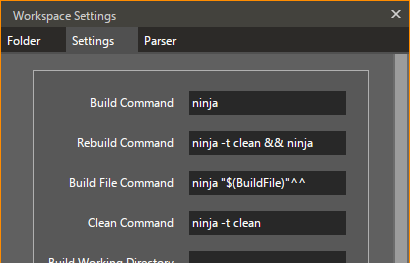
<Workspace> … <BuildCommand>ninja</BuildCommand> <RebuildCommand>ninja -t clean && ninja</RebuildCommand> <BuildFileCommand>ninja &"$(BuildFile)&"^^</BuildFileCommand> <CleanCommand>ninja -t clean</CleanCommand>
10x is probably the fastest IDE to date. So it makes only sense to use it with the fastest build system, right?
There is already excellent documentation in form of the blog post that introduced 10x workspaces. Check it out if you run into problems!
<Workspace> … <BuildCommand>ninja</BuildCommand> <RebuildCommand>ninja -t clean && ninja</RebuildCommand> <BuildFileCommand>ninja &"$(BuildFile)&"^^</BuildFileCommand> <CleanCommand>ninja -t clean</CleanCommand>
This article is about 10x, so I assume you wrote a proper build.ninja for your project and you have set up an empty workspace for your project.
Also, ninja must be in your PATH (but it should be trivial to do otherwise).
Go to ninja and save via
----- Build All Debug x86-WIN -----
Executing build command:
ninja
Working Directory: A:/project
[1/42] compiling "test file 1.cpp" ...
…
[42/42] compiling "test file 42.cpp" ...
===== Success : 0 errors, 0 warnings =====
So this command just calls ninja from within your project directory, where it looks for a build.ninja file and builds all targets.
Ninja can remove all generated files using the clean extra tool. Under ninja -t clean and save via
Click
----- Clean All Debug x86-WIN -----
Executing build command:
ninja -t clean
Working Directory: A:/project
Cleaning... 42 files.
===== Success : 0 errors, 0 warnings =====
This combines Clean All with Build All. This requires some kind of shell. It seems 10x uses cmd.exe for build commands, so:
ninja -t clean && ninja
And indeed:
----- Rebuild Debug x86-WIN -----
Executing build command:
ninja -t clean && ninja
Working Directory: A:/project
Cleaning... 42 files.
[1/42] compiling "test file 1.cpp" ...
…
[42/42] compiling "test file 42.cpp" ...
===== Success : 0 errors, 0 warnings =====
This is a bit more tricky. First of all, how do you know what the current source file is? Under
But ninja cannot build files. It builds targets. In this case, the target you’d like to see built is the object file corresponding to the current source file. If your build is simple, it might be as easy as adding .o to the name. For out-of-source-builds, it’s very complicated.
Luckily, the ninja manual points out:
There is also a special syntaxtarget^for specifying a target as the first output of some rule containing the source you put in the command line, if one exists. For example, if you specify target asfoo.c^thenfoo.owill get built (assuming you have those targets in your build files).
This is exactly what’s needed here!
However, 10x uses cmd.exe to run the command, and ^ is a special character. It must be properly escaped by using ^^ instead!
Finally, 10x does not enclose $(BuildFile) in quotes if the path contains spaces, so add those too:
ninja "$(BuildFile)"^^
Open a file from your project (optimally one with spaces in its path) and click
----- BuildFile Debug x86-WIN -----
Executing build command:
ninja.exe "test file.cpp"^^
Working Directory: A:/project
[1/1] compiling "test file 1.cpp" ...
===== Success : 0 errors, 0 warnings =====